The board before you change anything
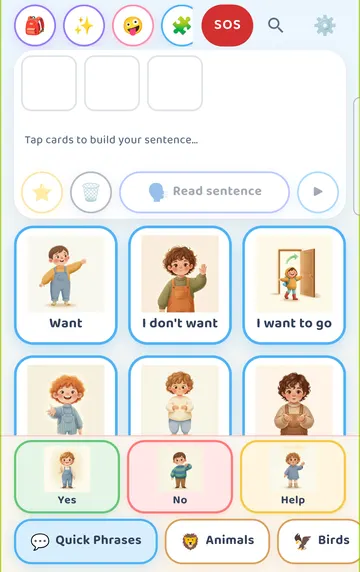
Here is the board in English, on the Quick Phrases tab. Look at where Want sits: top left. Keep that in mind.
Turn on a second language
Press and hold the gear at the top right for 3 seconds, then answer the sum in "For grown-ups".
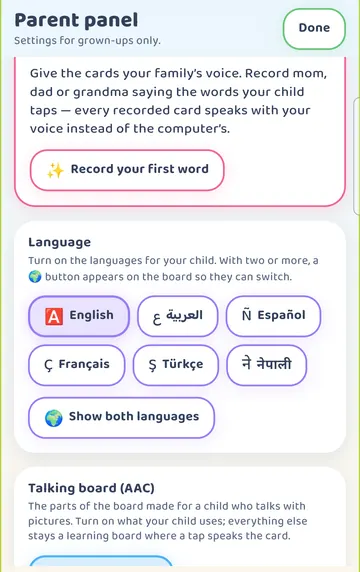
Look at the Language section. It says: "Turn on the languages for your child. With two or more, a 🌍 button appears on the board so they can switch."
Tap a language to turn it on. The app switches to it straight away. We tapped Español. The Done button now reads Listo, because the app is in Spanish. Tap it.
To turn a language off, tap it again. At least one language always stays on.
What changes on the board
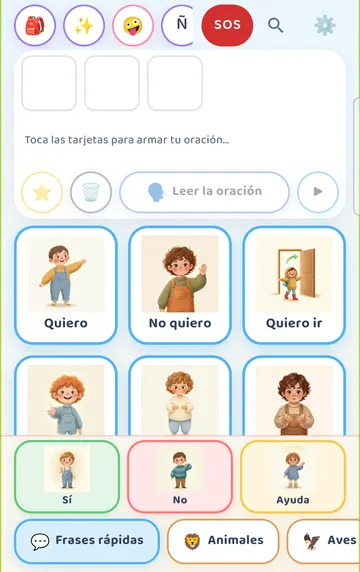
Here is the same board in Spanish. Every card keeps its picture and its place. Only the words change. Want is now Quiero, and it is still top left.
This is on purpose. Your child's hand can find the same spot in every language.
A "Switch language" button now sits in the top row. It shows the letter of the language that is on. One tap flips between the languages you turned on. Your child can use it too.
"Show both languages": what it does today
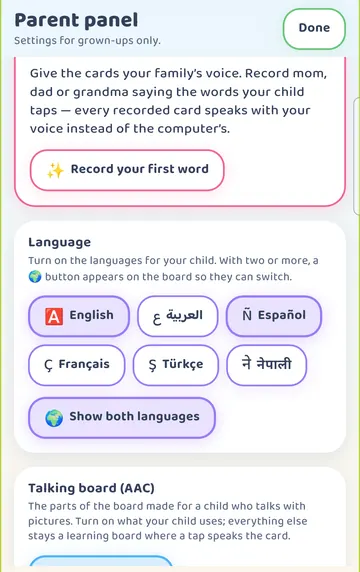
In the Language section there is also a switch called Show both languages.
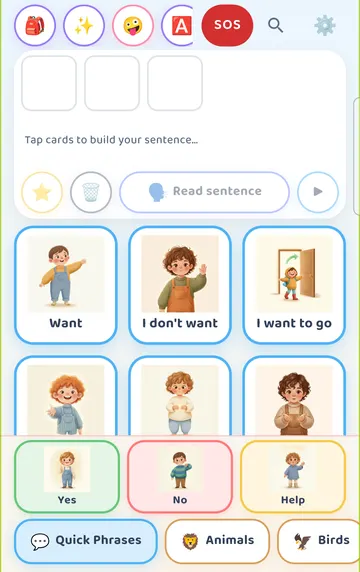
See it on a larger screen
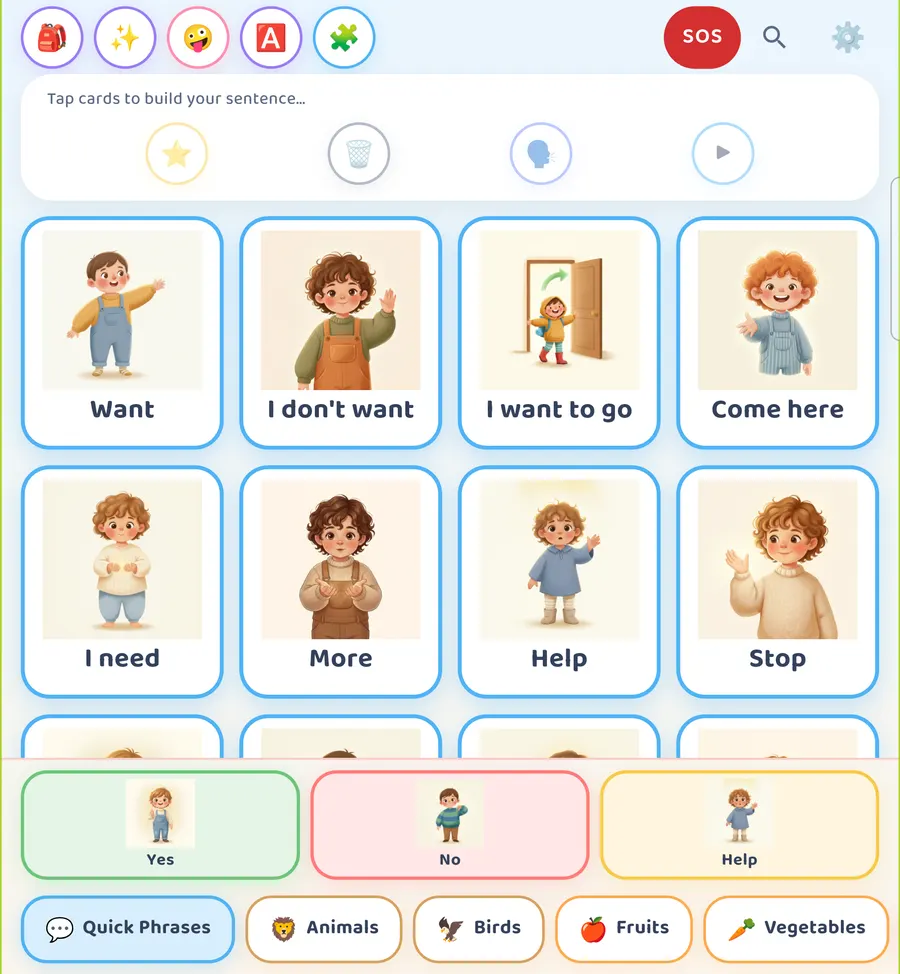
In version 2.24.0, this switch does not put two words on the board cards. With it on, the board still shows one language.
What it does is add the second language in two places: the Word of the day banner, and the list in My Cards.
Two languages side by side: Learn > Two languages
To see both words on every card, use the Two languages page.
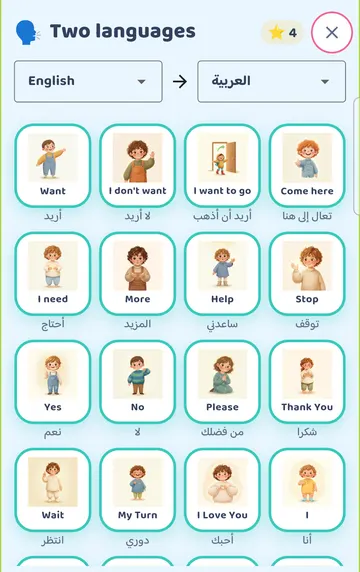
See it on a larger screen
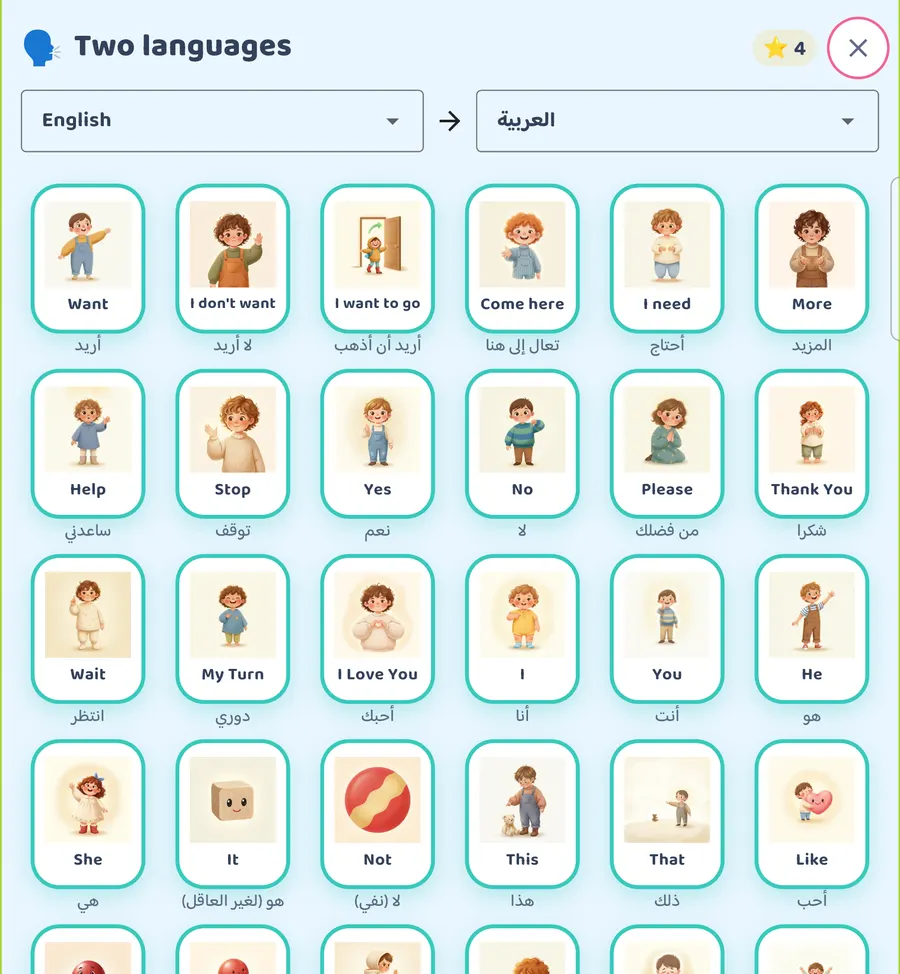
Tap the bag (More), then Learn, then Two languages. At the top, pick two languages. We picked English and العربية (Arabic). Every card now shows both words. On a larger screen, you see more cards at once.
This is a good page for sitting together. You can point to the picture, say the word in one language, then in the other.
Arabic: right to left, cards stay put
See it on a larger screen
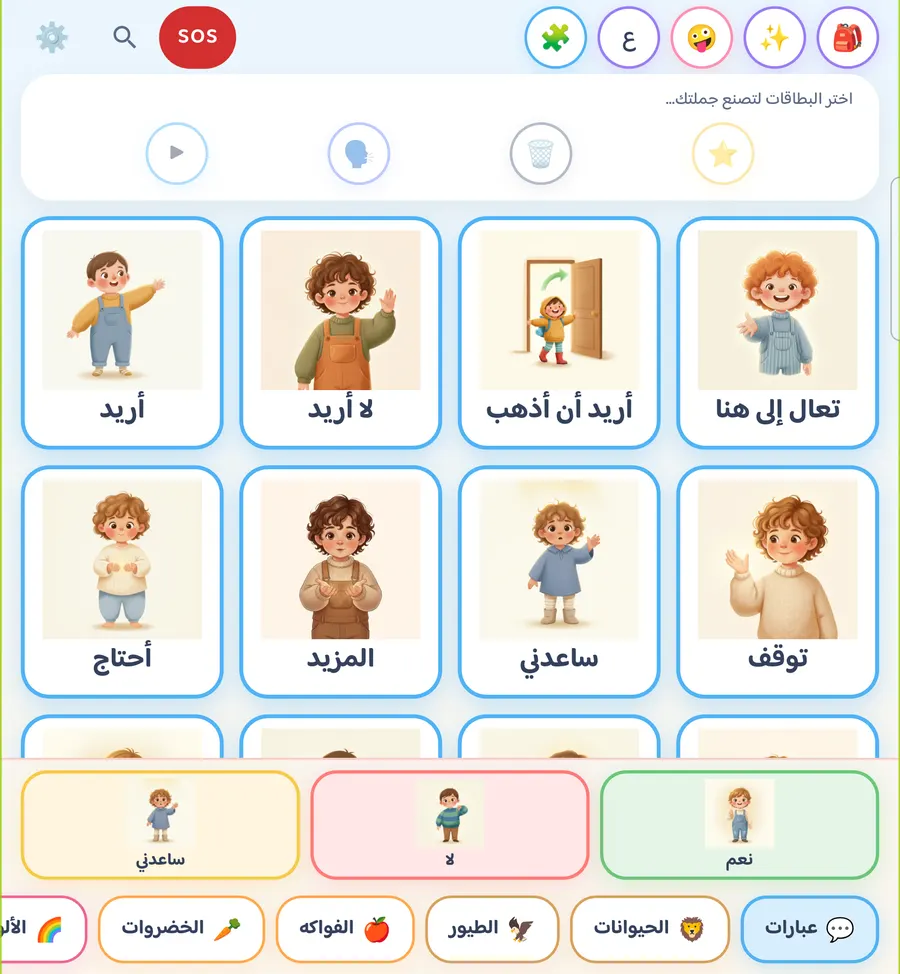
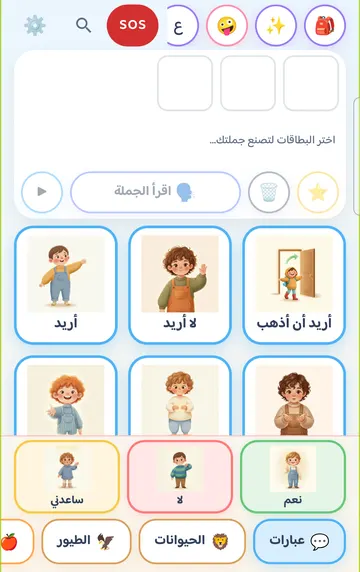
When you switch to Arabic, the app's text and header run right to left. The Yes / No / Help row and the category tabs are mirrored too, so Yes sits on the right.
The card grid itself does not flip. Want (أريد) is still top left. Pictures stay where your child expects them.
Nepali
See it on a larger screen
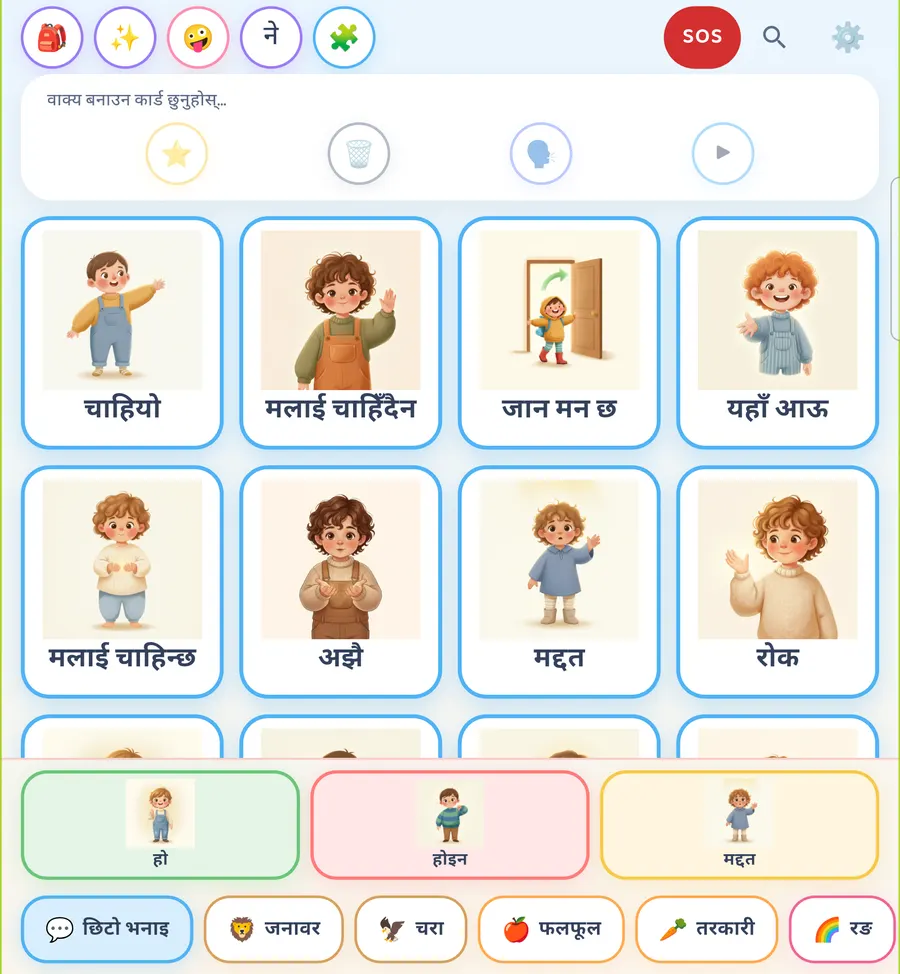
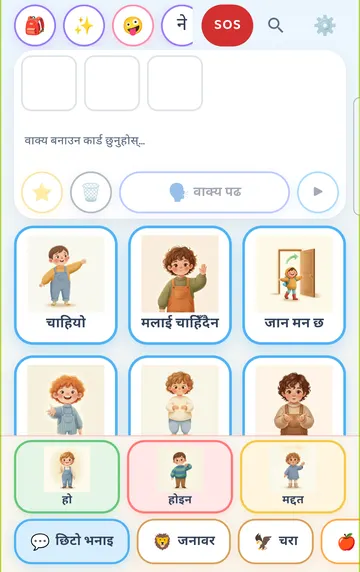
Here is the board in नेपाली (Nepali). Same cards, same places, Nepali words. To get here, tap नेपाली in the Language section, then tap भयो (Done).
Every card is narrated in Nepali. The app's fixed lines are narrated in Nepali too: the Let's Talk buddy, the storybooks and the emergency sheet. The Nepali words and lines were prepared with native speakers.
Sentences are different. When your child builds a sentence and taps Read sentence, the whole sentence is read by your device's text-to-speech voice. That needs a Nepali voice on the device. Without one, the app plays the card words one by one instead.
Cards you add yourself in My Cards also use the device's voice, so in Nepali they need that voice as well.
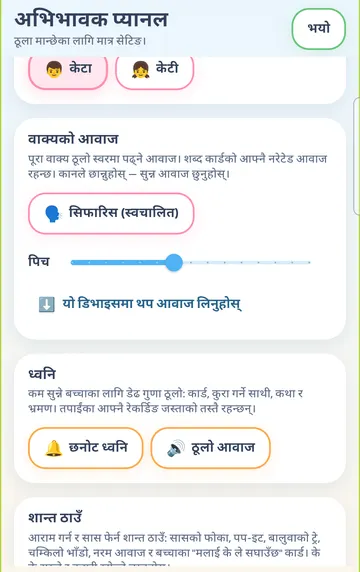
Whether your device has a Nepali voice depends on the device. On Android, a Nepali voice may be available from Google's text-to-speech. In the grown-up settings, Sentence voice has a button, "Get more voices on this device". That screen alone may not tell you whether a Nepali voice is there. The simplest check is to build a short sentence and tap Read sentence. If you hear the words one at a time, the device doesn't have a Nepali sentence voice yet.
On iPhone and iPad there is no Nepali system voice. The cards and fixed lines still play in Nepali. A sentence your child builds plays card by card.
Try it
- Press and hold the gear for 3 seconds and answer the sum.
- In Language, tap your second language. Tap Done (it will be in that language).
- Look at the board. Find Want in the top left.
- Tap the Switch language button to flip back. Tap it again to flip forward.
- Tap the bag (More), then Learn, then Two languages. Pick your two languages at the top.
- Point to a picture and say the word in both languages together.
- If you use Nepali, build a short sentence and tap Read sentence to hear how your device plays it.
This is practical guidance from the people who make Talking Cards, not clinical advice. Your child's speech-language pathologist knows your child best.