Before you start
My Cards is part of the full app. You can also use it during a free window: a free week, three times over, seven days each, or the 15 minutes a day that a grown-up can start.
In this version, photo cards come from your photo library. There is no camera button inside the app. So take the picture first with your phone's camera app, then come back to Talking Cards.
A tip for choosing the photo: a toy, a cup or a favorite object works well. Take it on a plain background so the thing itself is easy to see. Our example is a toy cup.
Open My Cards
Press and hold the gear at the top right for 3 seconds. The "For grown-ups" check appears. Answer the sum.
See it on a larger screen
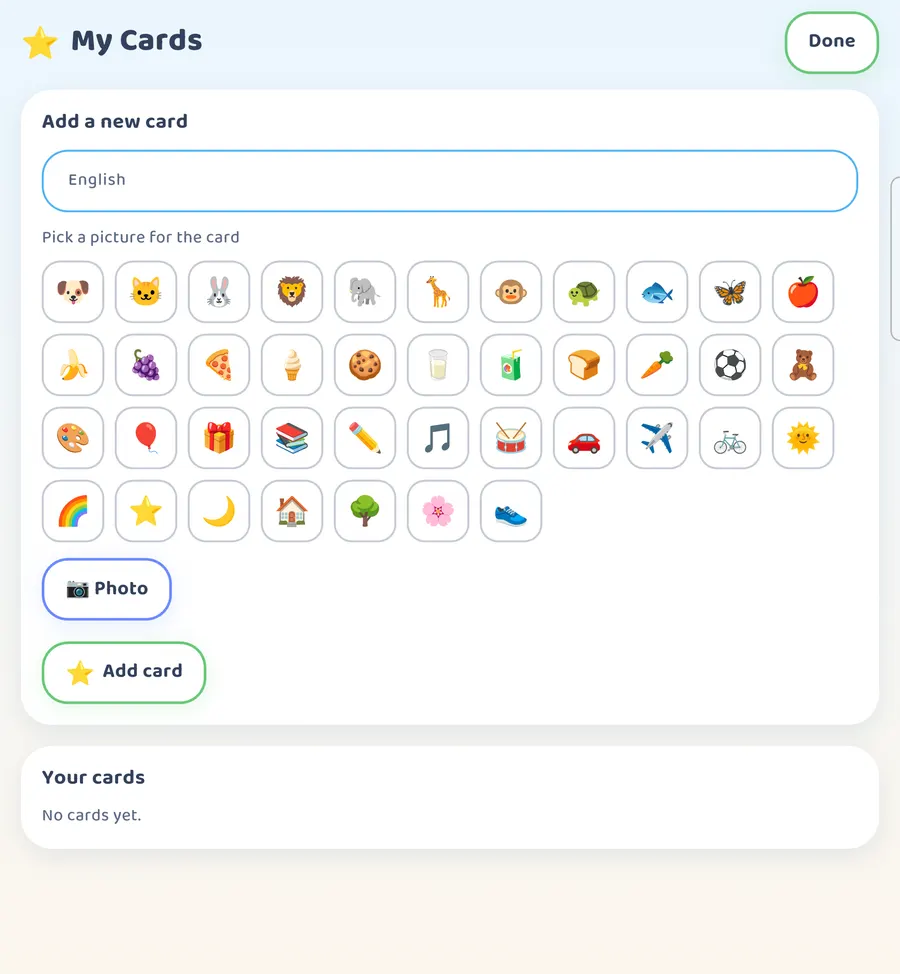
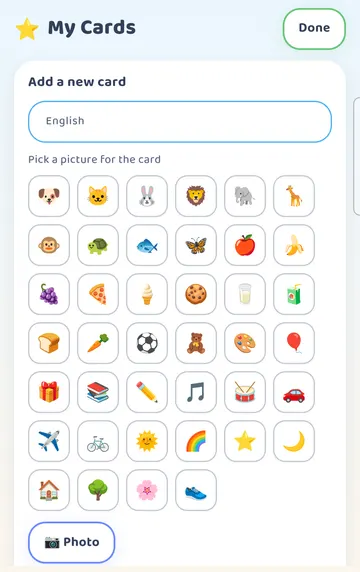
Scroll down the grown-up settings and tap My Cards. At the top you will see Add a new card. On a tablet or an unfolded phone, the same page has more room.
Add the word and the photo
Tap the name box and type the word. We typed "Toy cup". If you have more than one language turned on, there is one name box per language.
Below the box, you can pick an emoji picture, or tap Photo.
Tap Photo. Your phone's photo picker opens. On Android, it says "Talking Cards will only have access to the photos you select". Pick your photo and tap Done. On iPhone and iPad, your device shows its own photo picker.
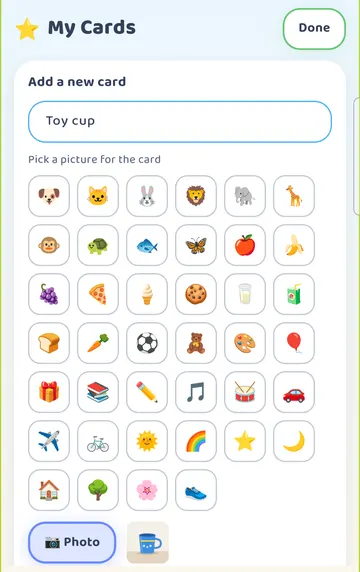
The photo now shows next to the Photo button.
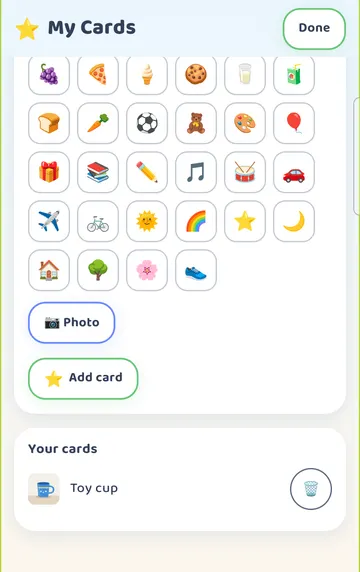
Scroll down and tap Add card. Toy cup now appears under Your cards.
Find it on the board
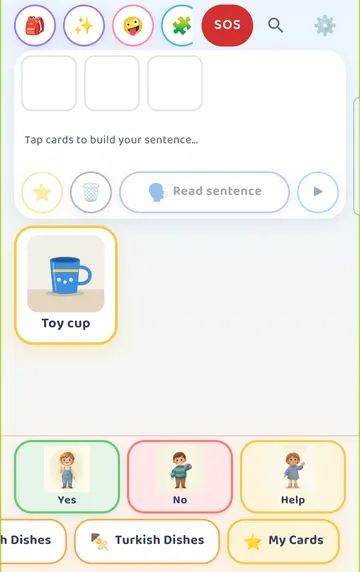
See it on a larger screen
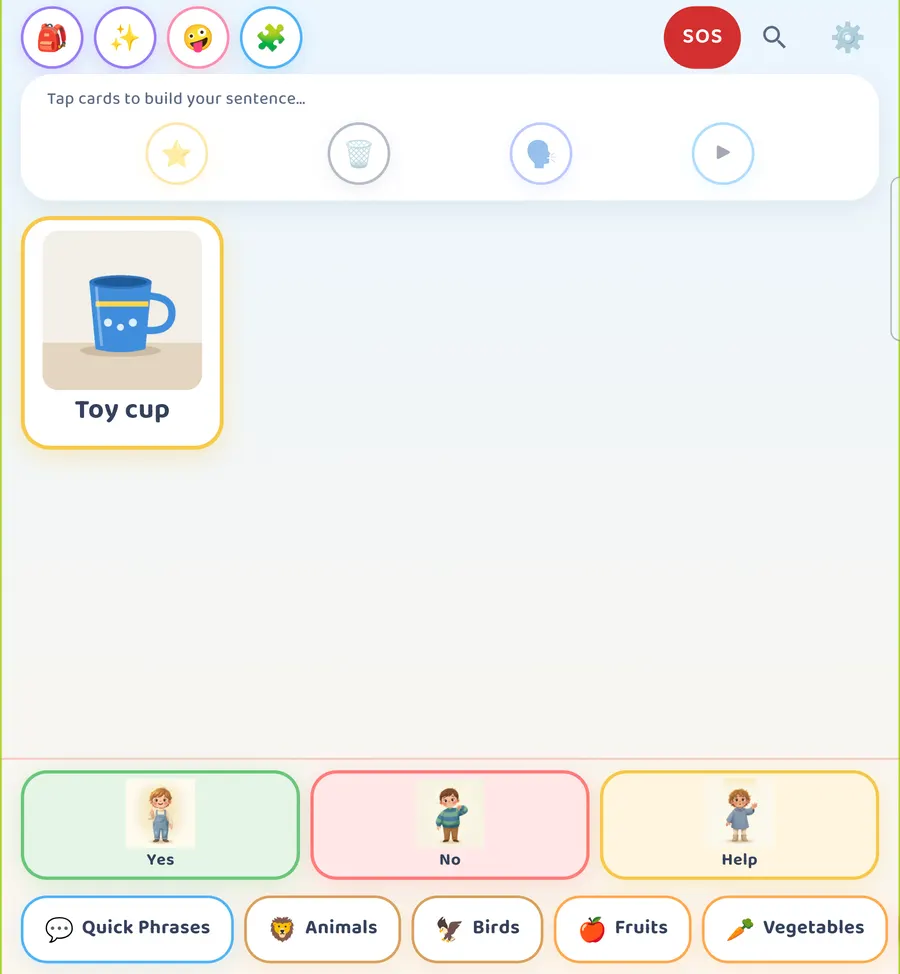
Close the grown-up settings. On the board, scroll the row of category tabs all the way to the end. The last tab is My Cards. Your new card is there with its photo. Here it is on a larger screen.
A photo card works like any other card. Your child taps it and hears its name.
One difference: the app's own cards are narrated. A card you make has no narrated clip, so your device's text-to-speech voice says its name.
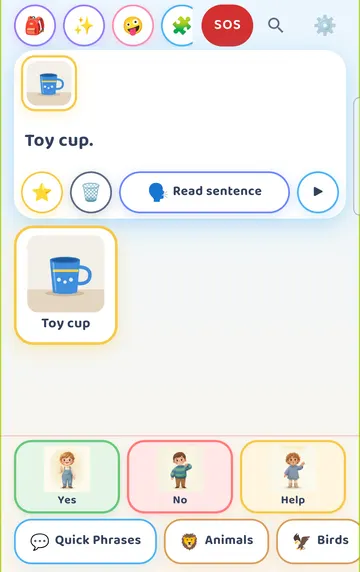
If the sentence strip is on, a tap on the photo card adds it to the sentence. In our picture, the strip reads "Toy cup.".
Tidy the board: hide cards
Sometimes the board has cards your child doesn't need right now. You can hide them.
Open the grown-up settings again (hold the gear for 3 seconds, answer the sum). Scroll to Hide cards and tap it.
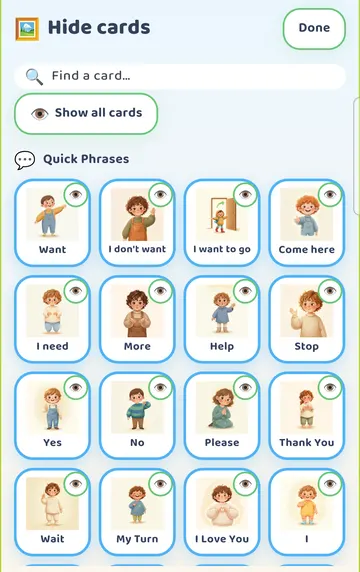
You will see every card with a Shown or Hidden label, a search box, and a Show all cards button.
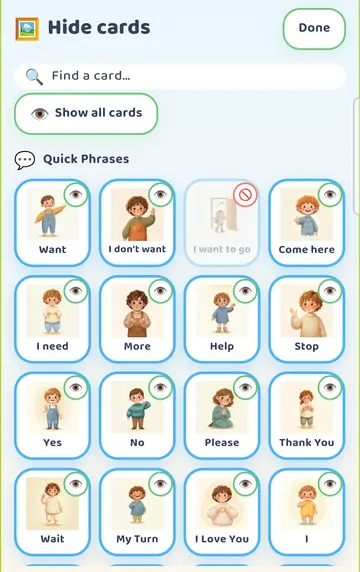
Tap a card to hide it. We tapped "I want to go". It is now marked Hidden and grayed out.
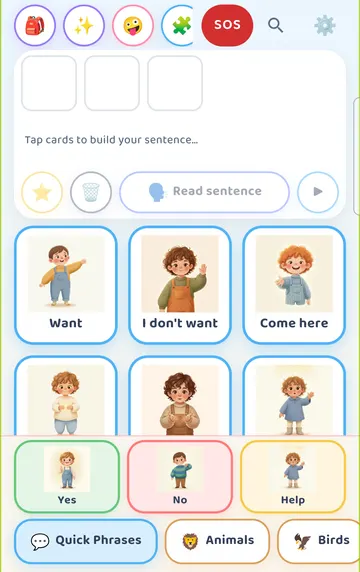
Close the settings and look at the board. The card is gone, and the cards after it move up to fill the space. In our picture, "Come here" moved into the spot where "I want to go" used to be.
To bring cards back, open Hide cards and tap Show all cards.
Hiding is different from vocabulary levels
Moving cards around can matter. Some children find a card by where it sits on the screen. So think about which tool to use.
Hide cards removes a card and lets the others move up. Use it when you want a shorter board and the new layout is fine.
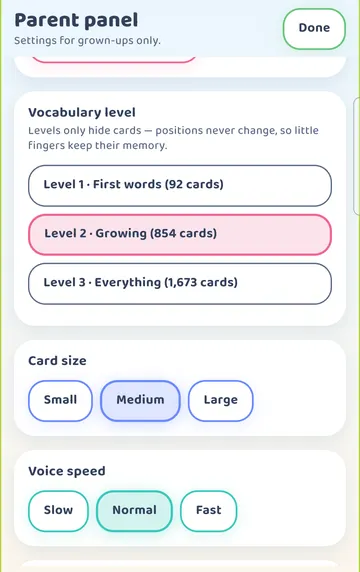
Vocabulary level works another way. You find it higher up in the grown-up settings. There are three levels:
- Level 1 · First words: about 120 cards
- Level 2 · Growing: about 900 cards (the default)
- Level 3 · Everything: 1,700+ cards
The screen says it well: "Levels only hide cards — positions never change, so little fingers keep their memory." A level shows fewer cards, and every card stays in its place.
Keep a copy
Your photo cards are saved in the app on this phone or tablet. If you change phones, or want a copy just in case, use Backup & restore in the grown-up settings. A backup holds your own cards, photos and routines. On Android, a Save dialog lets you choose where the file goes. On iPhone and iPad, your device shows its own save screen.
Try it
- Take a photo of a favorite toy or object with your camera app. Use a plain background.
- In Talking Cards, press and hold the gear for 3 seconds and answer the sum.
- Tap My Cards. Type the word in the name box.
- Tap Photo, pick your picture and tap Done.
- Scroll down and tap Add card.
- Close the settings. Scroll the category tabs to the end and tap My Cards.
- Tap the new card together, and say the word with your child.
- If the board feels busy, try a vocabulary level first, since it keeps every card in place. Use Hide cards for the few you want gone.
This is practical guidance from the people who make Talking Cards, not clinical advice. Your child's speech-language pathologist knows your child best.