Opening the Parent panel
Find the gear in the top right of the board. A short tap only shows a reminder: "Press and hold for 3 seconds to open". Press and hold it for 3 seconds instead.
A small "For grown-ups" check appears with a sum and three answers. Tap the right answer and the Parent panel opens. A wrong answer simply closes it. If you'd rather use a code of your own, the panel has a Grown-ups PIN row that can replace the sum.
Vocabulary level, card size and voice speed
See it on a larger screen
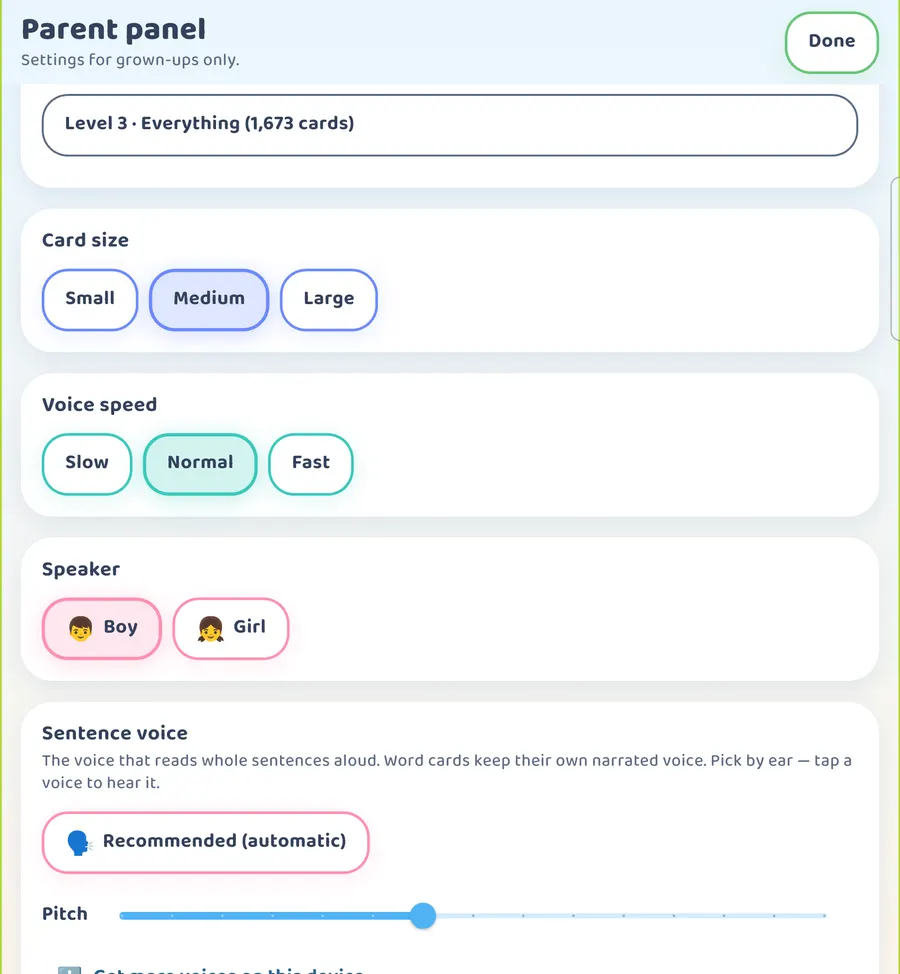
Scroll down and you'll see three settings side by side. On a larger screen they look the same, with more room.
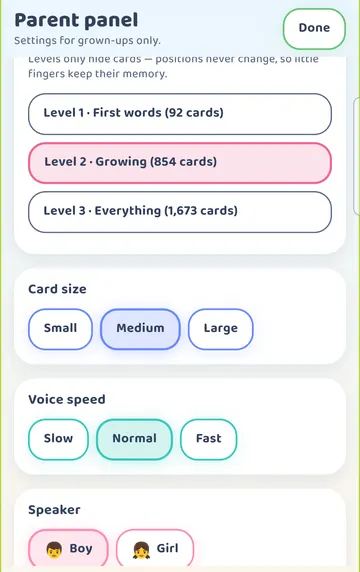
Vocabulary level decides how many cards are on the board:
- Level 1 · First words: about 120 cards
- Level 2 · Growing: about 900 cards (the default)
- Level 3 · Everything: 1,700+ cards
Levels only hide cards. They never move them. The app puts it this way: "Levels only hide cards — positions never change, so little fingers keep their memory." A child who knows where "Water" sits will find it in the same place when you move up a level.
Card size is Small, Medium or Large. Larger cards are easier to hit. Smaller cards fit more on the screen at once.
Voice speed is Slow, Normal or Fast. Try Slow for a child who needs a moment to take in each word.
A little further down are Speaker (Boy or Girl) and Sentence voice. The app explains the difference: "The voice that reads whole sentences aloud. Word cards keep their own narrated voice. Pick by ear — tap a voice to hear it." Single cards play their narrated word (or a Family Voices recording, if you made one; photo cards you add use the device voice). Whole sentences use your device's text-to-speech voice, so the choices you see depend on the voices your device has. On Android there's a "Get more voices on this device" link if you want to add some.
A paper board for when the tablet isn't handy
Tablets run out of battery, get left at home, or aren't allowed on the playground. The Printable board makes a paper copy.
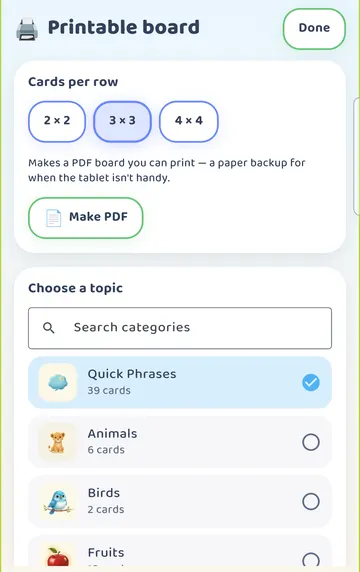
Scroll down in the Parent panel and tap Printable board. The screen describes it well: "Makes a PDF board you can print — a paper backup for when the tablet isn't handy."
- Choose how many cards per row: 2 × 2, 3 × 3 or 4 × 4.
- Choose a topic, such as Quick Phrases or Animals.
- Tap Make PDF.
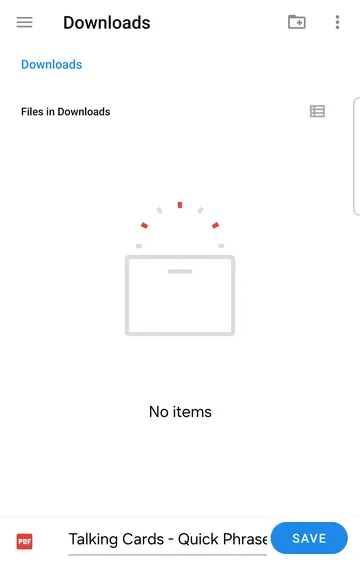
On Android, the system Save dialog opens with a file name like "Talking Cards - Quick Phrases.pdf". Pick a folder, such as Downloads, and save. On iPhone and iPad, your device shows its own save screen instead.
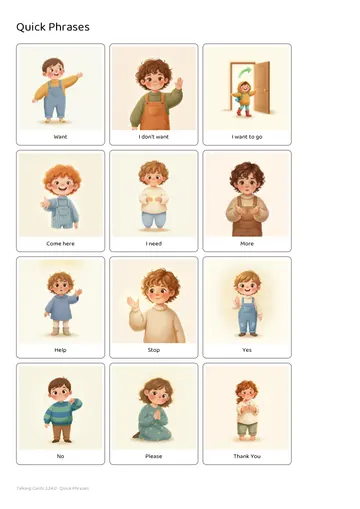
The PDF has the topic as its title, then the cards with their words, and the app version at the bottom. Print it, laminate it if you like, and keep it in a bag or on the fridge.
Backing up custom cards before you switch devices
If you've made your own photo cards or routines, save a backup before you change tablets or reinstall the app.
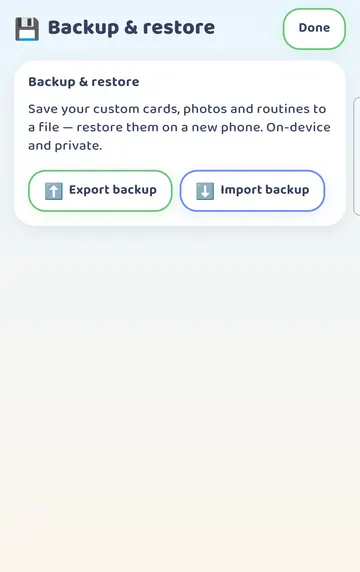
In the Parent panel, tap Backup & restore. There are two buttons.
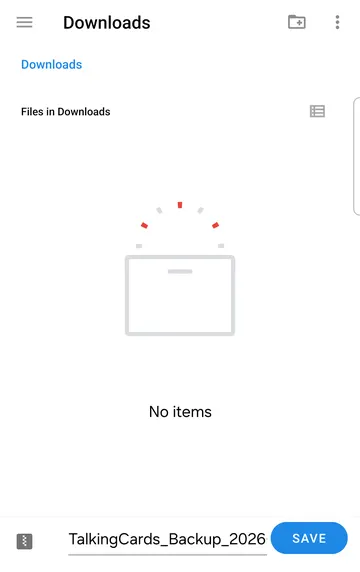
Export backup saves your custom cards, photos and routines to a file. On Android, the Save dialog opens with a name like TalkingCards_Backup_<date>.tcb. Android may save it with ".zip" added to the end. That's fine. You choose where the file goes, so put it somewhere you'll find it again.
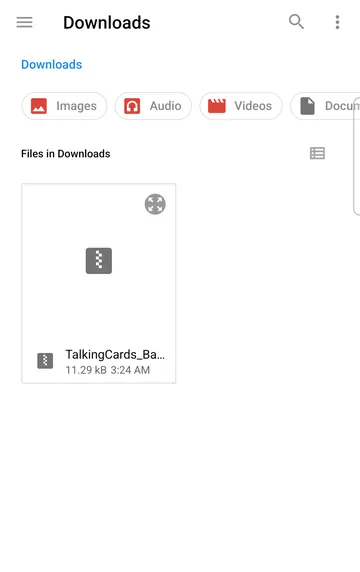
Import backup brings everything back, for example on a new phone. On Android it opens the file picker, where you choose the TalkingCards_Backup file. On iPhone and iPad, your device shows its own file sheet.
Seeing which cards get used
See it on a larger screen
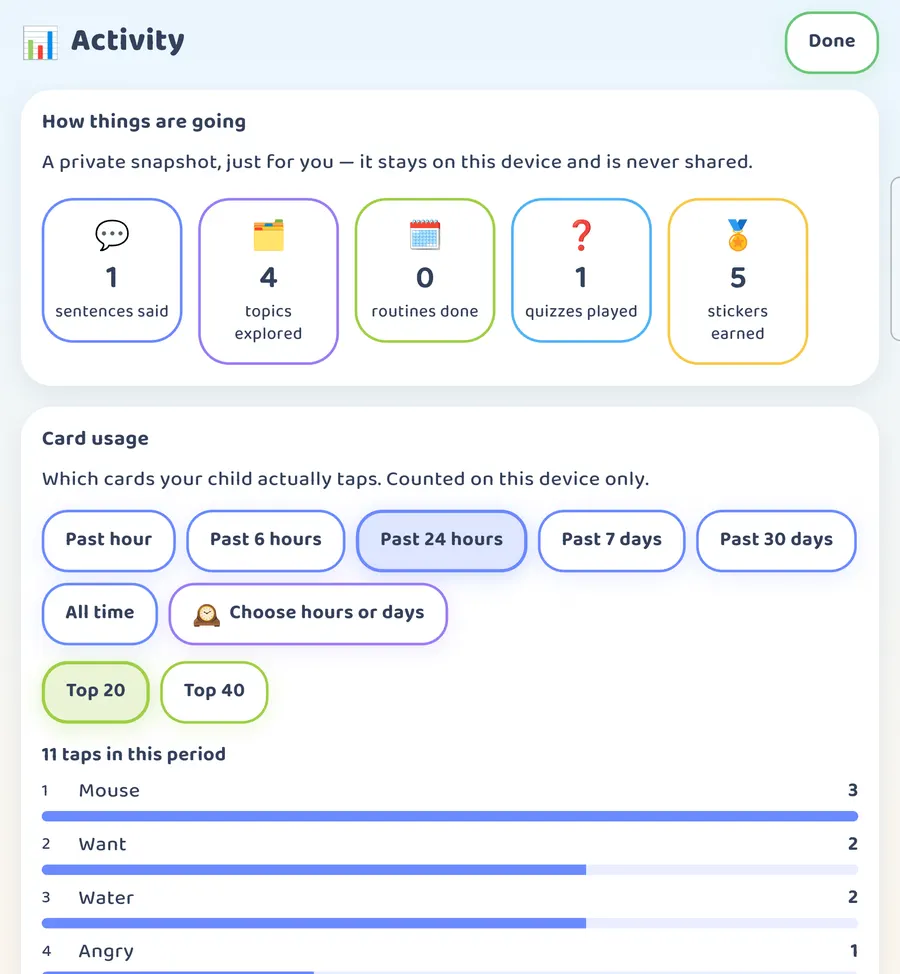
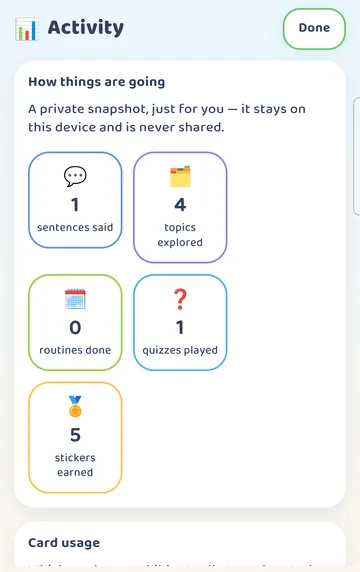
The Activity page gives you a summary on this device. At the top you'll see counts such as sentences said and topics explored. The same page on a bigger screen is in.
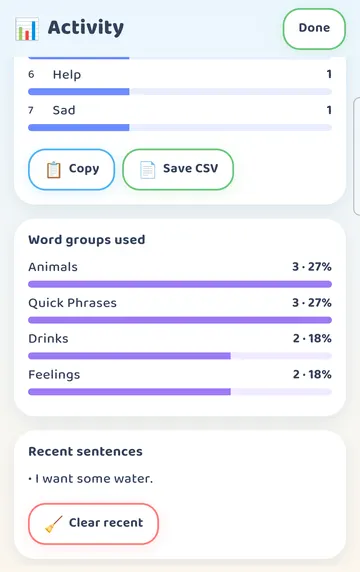
Scroll down to Card usage. It lists which cards were tapped and how many times. Below that are Word groups used and Recent sentences, with a Clear recent button.
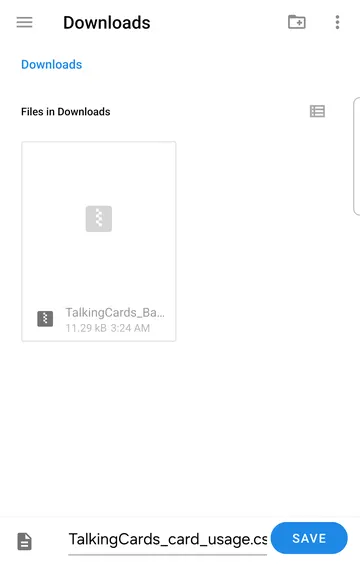
Two buttons let you take the numbers elsewhere. Copy puts the list on the clipboard. Save CSV makes a spreadsheet file called TalkingCards_card_usage.csv, with two columns: card and taps. On Android this opens the Save dialog. On iPhone and iPad, your device shows its own save screen.
Working without Wi-Fi
Talking Cards works offline for everyday use, which helps in schools with patchy Wi-Fi or on outings. On Android, the internet is used only to complete a purchase or redeem an unlock code. On iPhone and iPad, the app itself makes no network requests; purchases go through the App Store.
Try it
- Press and hold the gear for 3 seconds and answer the sum.
- Set Vocabulary level, Card size and Voice speed to suit the child.
- Open Printable board, pick 3 × 3 and Quick Phrases, and tap Make PDF.
- Save the PDF and print one copy for the classroom or the car.
- Open Backup & restore and tap Export backup. Save the file somewhere safe.
- After a week of use, open Activity and look at Card usage.
- If you want the numbers in a spreadsheet, tap Save CSV.
This is practical guidance from the people who make Talking Cards, not clinical advice. Your child's speech-language pathologist knows your child best.