Open the grown-up settings
Press and hold the gear in the top right corner for 3 seconds. A "For grown-ups" box asks a sum. Tap the right answer and the Parent panel opens.
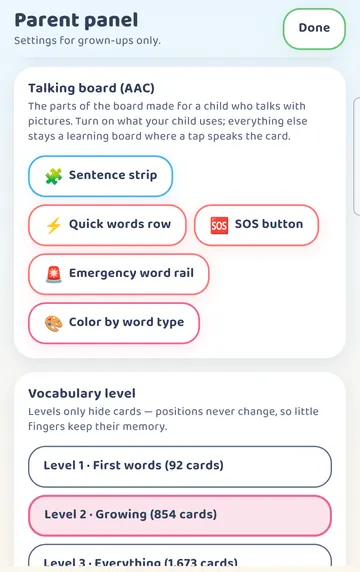
Scroll down to Talking board (AAC). You will see five separate switches:
- Sentence strip
- Quick words row
- SOS button
- Emergency word rail
- Color by word type
Each one turns on by itself, so you can start small. If you began with "Learn words and play", all five are off.
Turn on two switches
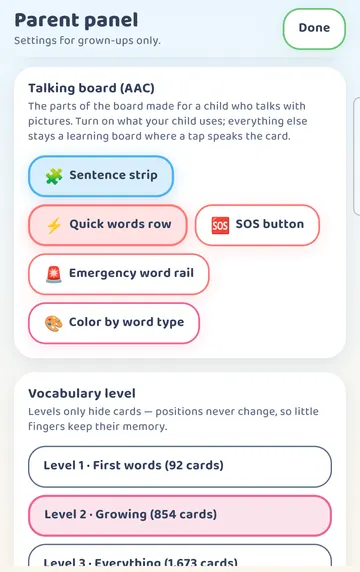
For a first try, tap Sentence strip and Quick words row. The chips fill in when they are on.
Then tap "Done" at the top right.
What changed on the board
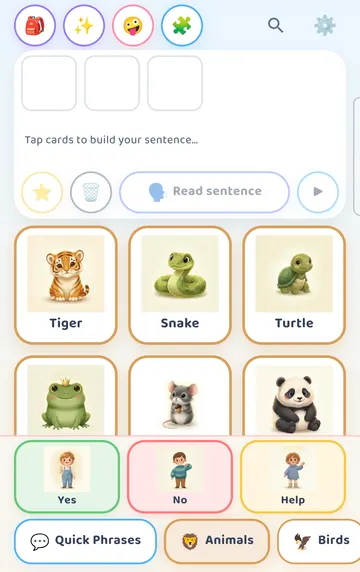
Back on the board, there is a sentence strip at the top. Until your child taps a card, it says "Tap cards to build your sentence…".
Under the strip are the sentence buttons: "Save to favourites" (the star), Clear (the bin), "Read sentence", and a play button that plays each word on its own.
Above the category tabs is the Quick words row. By default it holds Yes, No and Help.
Build "I want some water"
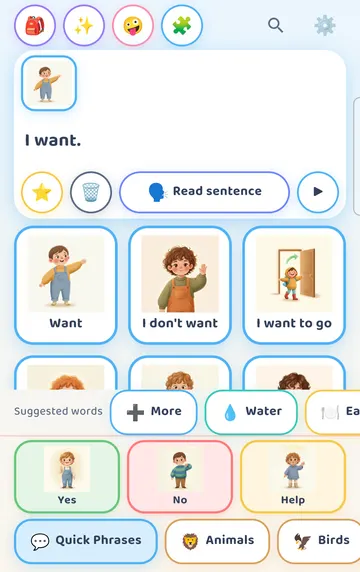
Open the Quick Phrases tab and tap Want. The card goes into the strip, and the strip reads "I want."
A row of Suggested words appears: More, Water, Eat and Play. Your child can pick from here, or from any card on the board.
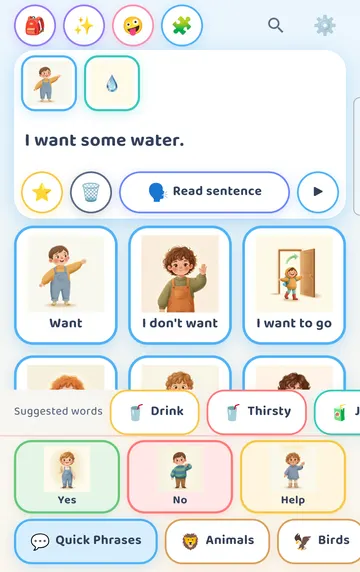
Tap Water. The strip now reads "I want some water." The app added "some" so the sentence sounds natural. New suggestions appear too: Drink, Thirsty and Juice.
Hear the sentence
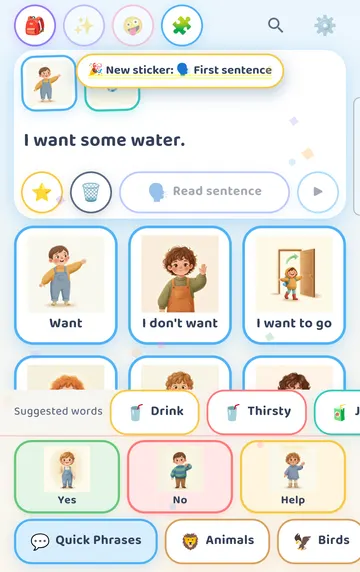
Tap "Read sentence". The whole sentence is spoken out loud. The first time, your child also gets a "New sticker: First sentence" badge and a little confetti.
The whole sentence is read by your device's text-to-speech voice. The single cards are narrated, so the sentence voice will sound a little different from the card words. You can pick the sentence voice in the Parent panel under Sentence voice. Which voices you can choose from depends on your device. On Android, they come from your phone's text-to-speech settings, and the Sentence voice setting has a "Get more voices on this device" option. On iPhone and iPad, your device offers its own set of voices.
Hear each word
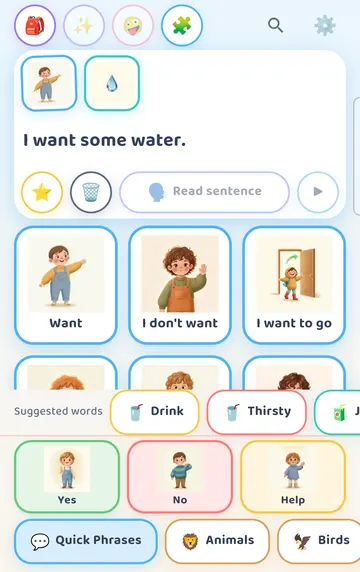
Tap the play button at the right of the strip. Each card plays its own narrated word, one after another.
Yes, No and Help
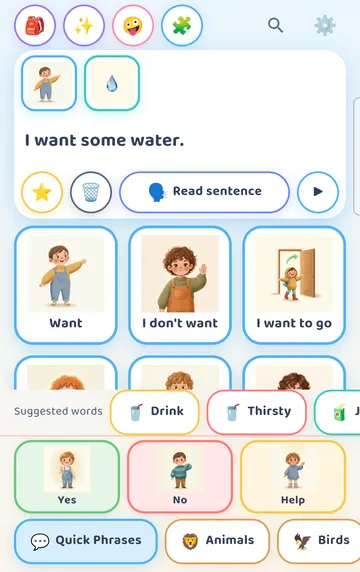
Now tap Help in the Quick words row. It is spoken right away.
The sentence in the strip stays exactly as it was. Yes, No and Help never change the sentence. So if your child needs to say "No" or "Help" in the middle of building something, nothing is lost.
Switching back without the gear
On the board, the top row has a switch between "Tap to hear" and "Build a sentence". It turns the sentence strip off and on again, and it doesn't need the grown-up check. That is useful on a day when your child just wants to tap and listen.
The other switches
You don't need the other three switches on day one, but here is what they are for.
SOS button puts an SOS button in the board's top row. It opens an Emergency sheet with 12 phrases, such as "I need help", "I am hurt" and "Call my parent". One tap speaks a phrase. You can change the phrases in the Parent panel under Emergency board.
Emergency word rail and Color by word type are there when you want them. Turn one on, look at the board, and turn it off again if it doesn't suit your child.
Try it
- Press and hold the gear for 3 seconds and answer the sum.
- Scroll to Talking board (AAC) and turn on Sentence strip and Quick words row.
- Tap "Done".
- In Quick Phrases, tap Want, then tap Water in the Suggested words.
- Tap "Read sentence" and listen together.
- Tap the play button to hear each word on its own.
- Tap Help, and notice the sentence stays put.
- Tap Clear (the bin) and let your child have a turn.
This is practical guidance from the people who make Talking Cards, not clinical advice. Your child's speech-language pathologist knows your child best.