Open Family Voices
Press and hold the gear in the top right corner for 3 seconds. Answer the sum in the "For grown-ups" box. The Parent panel opens.
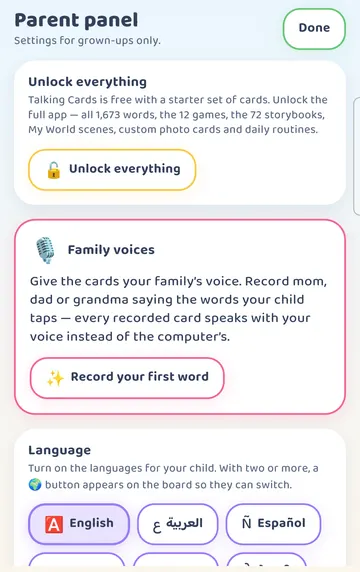
Near the top you will see the Family voices card. Tap "Record your first word".
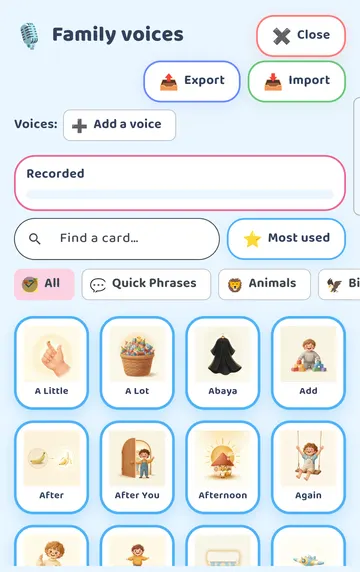
The Family voices page opens. It has a search box, category tabs and every card in the app. At the top, "Recorded" shows 0.
Pick a card
Find the card you want to record. You can scroll, use the category tabs, or type in the search box. In our example we searched for "water" and tapped the Water card.
Say whose voice it is
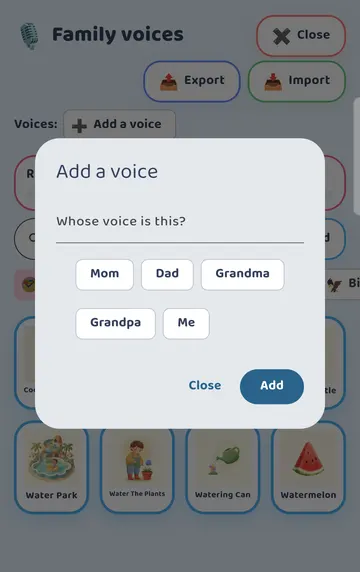
The first time, the app asks, "Whose voice is this?". You can pick Mom, Dad, Grandma, Grandpa or Me, or type a name. Tap Add.
Record
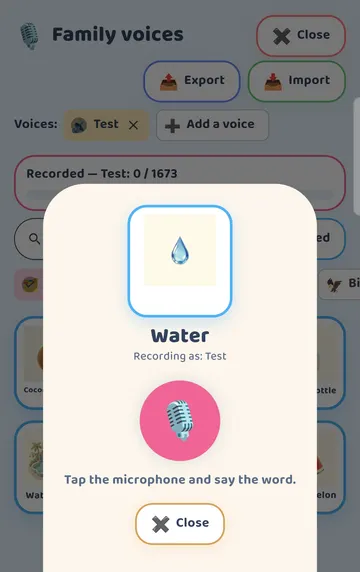
The recording sheet opens. It shows the word, who is recording, and a big Record button.
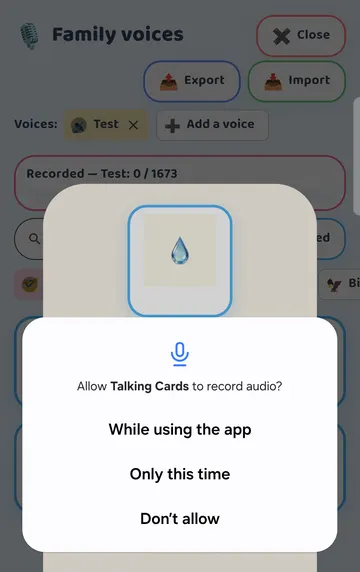
Tap Record. The first time, your phone asks if Talking Cards can use the microphone. On Android, you will see a box like this one. Allow it. On iPhone and iPad, your device shows its own prompt.
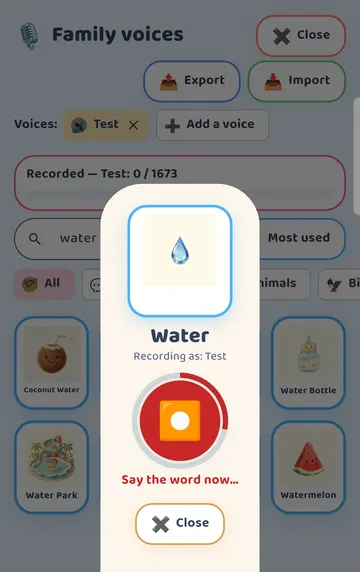
Once the microphone is allowed, tap Record and say the word. The screen says "Say the word now…" with a countdown ring. It only records for a couple of seconds and stops by itself. So have the word ready before you tap.
A quiet room helps. Say the word the way you would say it to your child.
Listen, then save
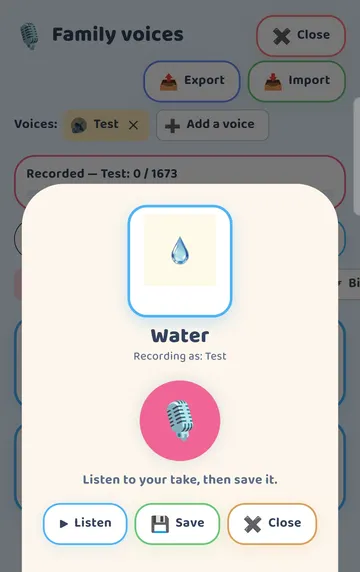
When the recording stops, you can listen to your take before you keep it. There are three buttons: Listen, Save and Close.
Tap Listen. If you like it, tap Save. If you don't, tap Close and record it again.
The card now has your voice
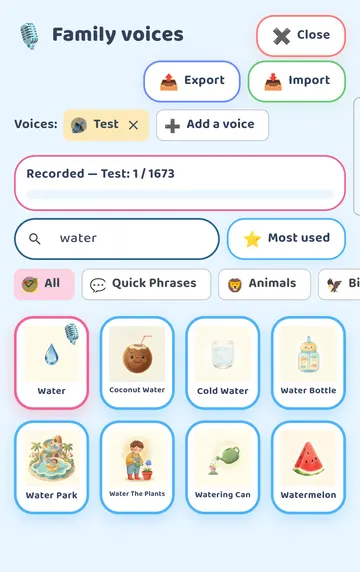
After you save, the page shows how many cards this voice has recorded, for example "Recorded — Mom: 1" out of the 1,700+ cards. The card moves to the front with a pink border and a small microphone badge, so you can see which cards are done.
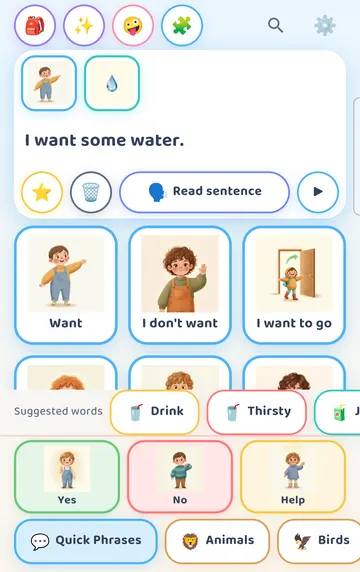
Close Family voices and the Parent panel. Now tap the card on the board. It plays the family recording instead of the narrated word.
One thing to know: when your child builds a sentence and taps "Read sentence", the whole sentence is still read by the device's text-to-speech voice. Family recordings play when a single card is tapped.
Check your progress
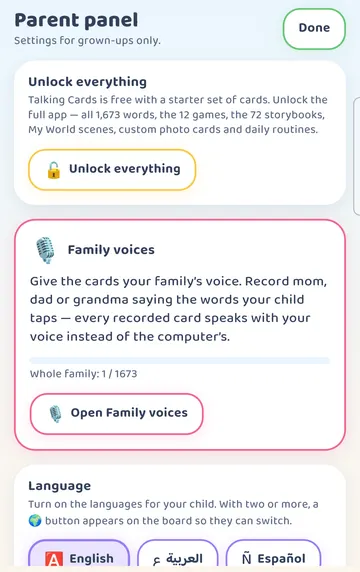
Next time you open the Parent panel, the Family voices card shows progress for everyone together, such as "Whole family: 1" out of the 1,700+ cards, and an "Open Family voices" button.
You don't need to record everything. A handful of favorite words is a lovely start.
Change or remove a recording
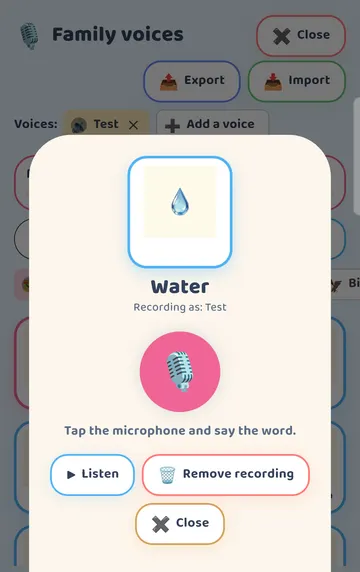
To change a recording, open Family voices and tap the recorded card. You can Listen, record a new take, or tap "Remove recording".
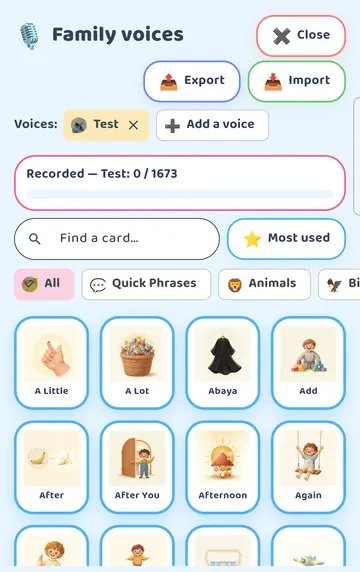
"Remove recording" works straight away, with no extra question. The counter goes back down and the card plays its narrated word again.
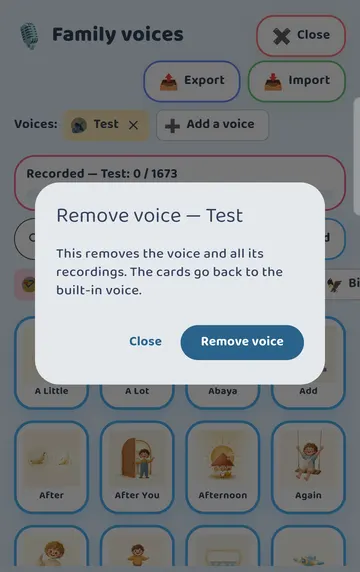
To remove a whole voice, tap the x next to its name. The app explains: "This removes the voice and all its recordings. The cards go back to the built-in voice." Tap "Remove voice" to confirm.
Try it
- Press and hold the gear for 3 seconds and answer the sum.
- In the Family voices card, tap "Record your first word".
- Search for a word your child loves and tap its card.
- Choose whose voice it is (for example, Mom) and tap Add.
- Tap Record. Allow the microphone the first time.
- Say the word as soon as you see "Say the word now…".
- Tap Listen. If it sounds right, tap Save.
- Go back to the board and tap the card with your child.
This is practical guidance from the people who make Talking Cards, not clinical advice. Your child's speech-language pathologist knows your child best.