Two features with similar names
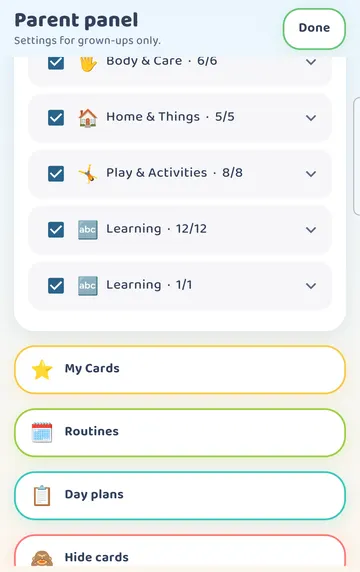
Talking Cards has two ways to lay out steps. They sit next to each other in the Parent panel, so it helps to know which is which.
Day plans are a list of steps for a part of the day. Your child sees what is happening Now and what comes Next. The morning plan in this guide is a Day plan.
Routines are short first/then steps for one task, such as brushing teeth or bath time. There are ready-made ones for brushing, washing, lunch, bath, bed, getting dressed, a trip and the potty.
This article walks through a Day plan. Routines are set up from their own row in the same panel.
One note before you start. The Routines tile your child opens on the board needs the full app or a free window. The free windows are a free week (you can start one three times, seven days each) and 15 minutes a day that a grown-up starts.
Step 1: Open the Parent panel
Grown-up settings sit behind a gate so little fingers don't wander in.
Press and hold the gear at the top right for 3 seconds. A short sum appears in "For grown-ups". Tap the right answer and the Parent panel opens.
Scroll down past the categories. You will see My Cards, then Routines, then Day plans.
Step 2: Add the ready-made Morning plan
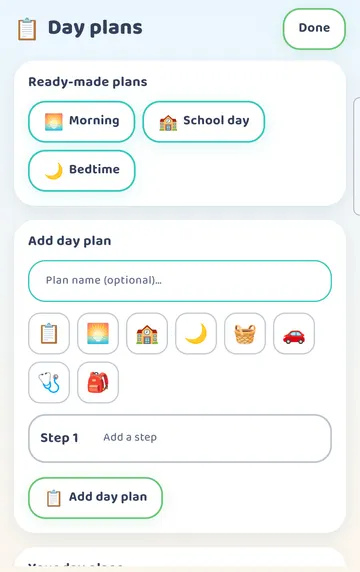
Tap Day plans. The page shows three Ready-made plans: Morning, School day and Bedtime. You can also build your own with an icon and steps. Under Your day plans, it says you have none yet.
See it on a larger screen
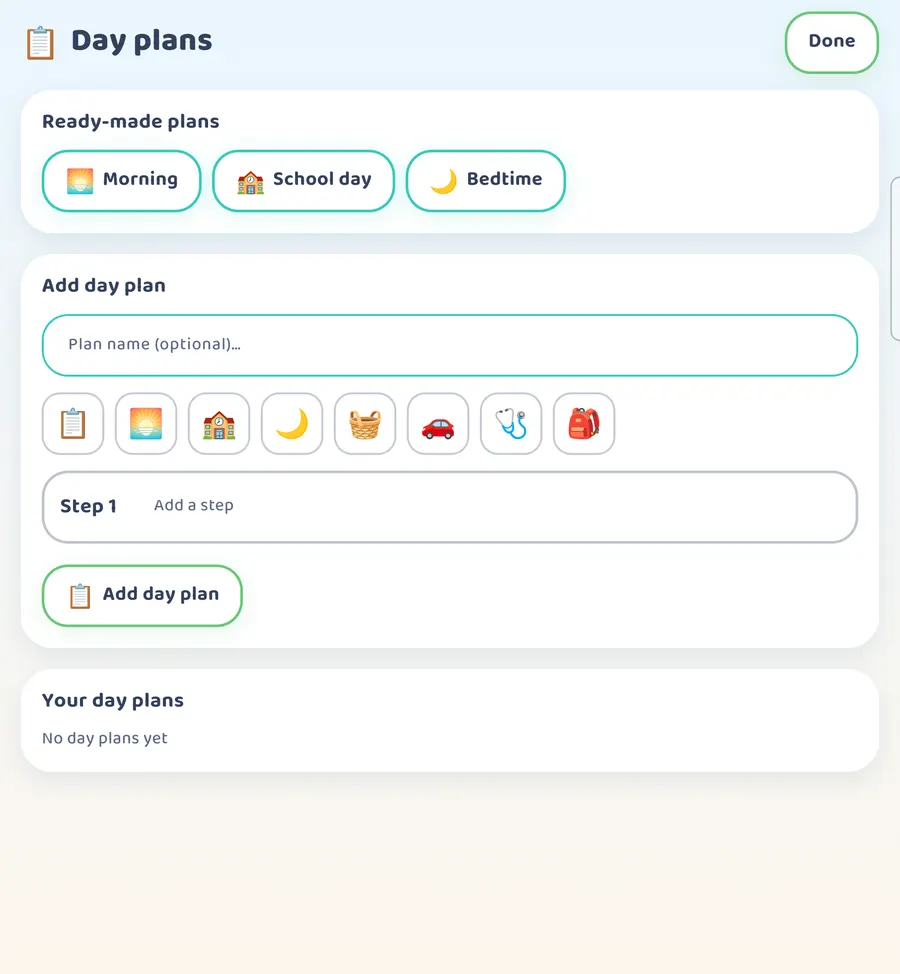
On a tablet or an unfolded phone, the same page has more room.
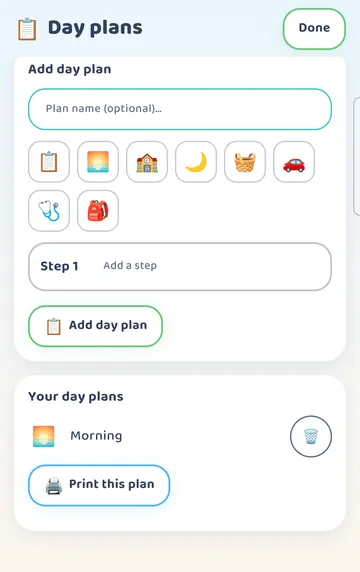
Under Ready-made plans, tap Morning. The morning plan appears under Your day plans right away.
The ready-made Morning plan has 7 steps, starting with Wake Up, Toilet, Get Dressed and Breakfast. A Day plan can hold up to 12 steps, so there is room to make it fit your house.
Step 3: Find it on your child's board
Tap Done twice to leave the settings. You are back on your child's board.
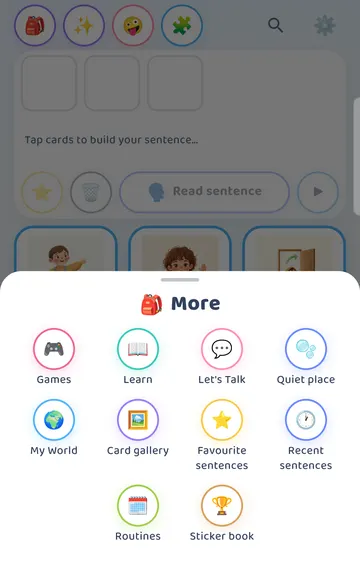
Tap the bag (More) at the top left. Inside, there is a Routines tile.
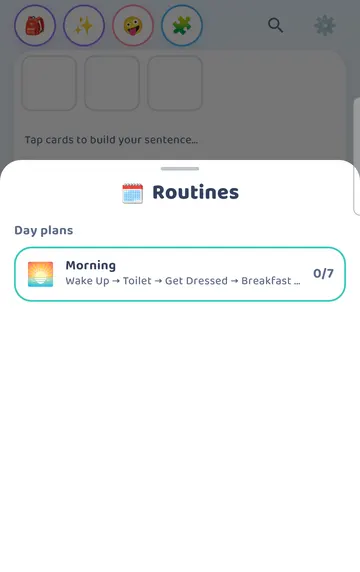
Tap Routines. Your day plans are listed there. Morning shows 0 / 7, which means no steps are done yet.
Step 4: Now and Next
Tap Morning. The plan opens.
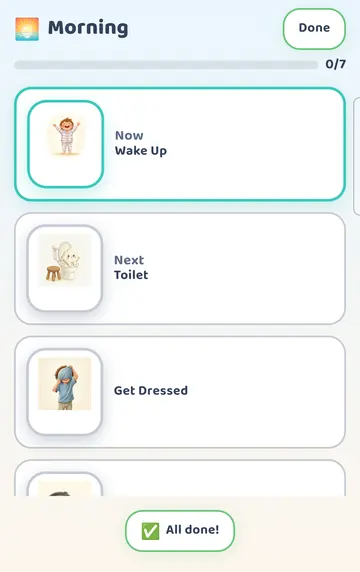
The first step, Wake Up, is marked Now and has a colored border. The step below it, Toilet, is marked Next. The rest of the morning follows underneath. A bar at the top shows 0/7.
See it on a larger screen
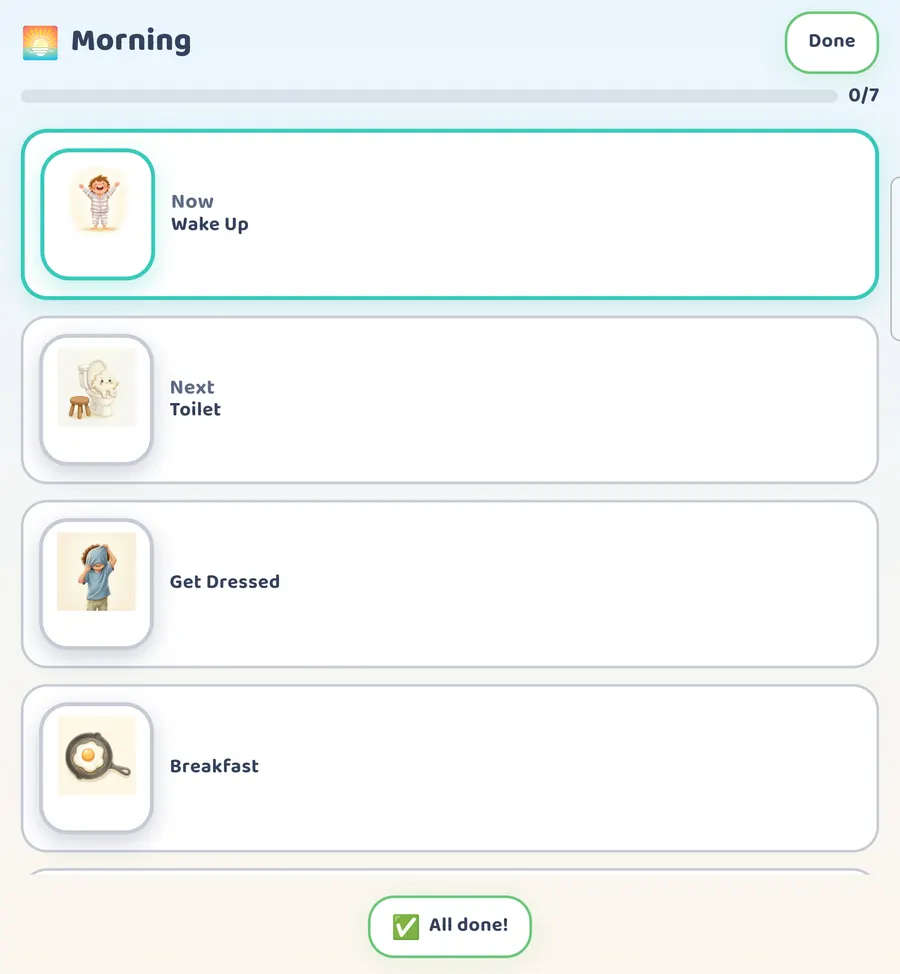
On a larger screen, you see more of the morning at once.
At the bottom there is an All done! button.
Step 5: Tick off a step
When your child has finished a step, they tap it. Here, Wake Up.
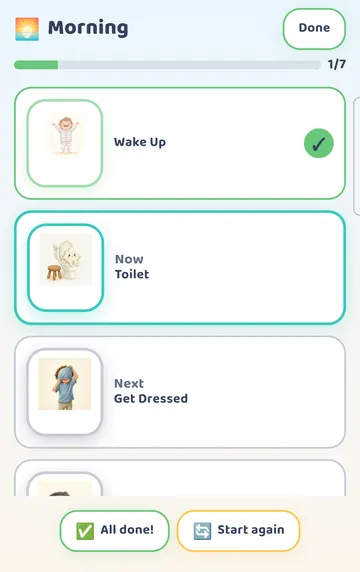
The app says the step aloud and ticks it off. Now moves down to Toilet, Next moves to the step after it, and the bar at the top fills a little.
Your child can keep going through the morning like this, one tap per step. Once a step is done, a Start again button appears if you want to begin from the top.
You don't need to reset the plan each night. It starts fresh on its own each new day.
A few gentle ideas
Do the first few mornings together. Point to Now, say the step, do it, then let your child tap it. Your child gets to see how it works before trying it alone.
Keep the phone or tablet somewhere your child can reach it during the morning, such as the kitchen counter.
If the ready-made steps don't match your morning, build your own plan from the Day plans page with the steps your family uses.
If one task inside the morning is hard, like brushing teeth, a first/then Routine for just that task can sit alongside the Day plan.
Try it
- Press and hold the gear for 3 seconds and answer the sum.
- Scroll down and tap Day plans.
- Under Ready-made plans, tap Morning.
- Tap Done twice, then tap the bag (More) and Routines.
- Tap Morning and look at Now and Next together.
- When a step is finished, let your child tap it and hear it.
- Keep going until the morning is done, or tap All done!
This is practical guidance from the people who make Talking Cards, not clinical advice. Your child's speech-language pathologist knows your child best.