Where SOS lives
Talking Cards opens as a learning board. Tap a card, hear the word, see it held up big.
The talking board tools are extras that a grown-up switches on. The SOS button is one of them. It stays hidden until you turn it on.
If you chose "Talk with pictures" when you first set up the app, SOS may already be showing. If not, here is how to add it.
The emergency board is part of the free app. You don't need to unlock anything to use it.
Step 1: Turn on the SOS button
Press and hold the gear at the top right for 3 seconds. A short sum appears in "For grown-ups". Tap the right answer and the Parent panel opens.
Find the section called Talking board (AAC). It has five chips: Sentence strip, Quick words row, SOS button, Emergency word rail and Color by word type. Each one turns on by itself, so you can pick only the ones you want.
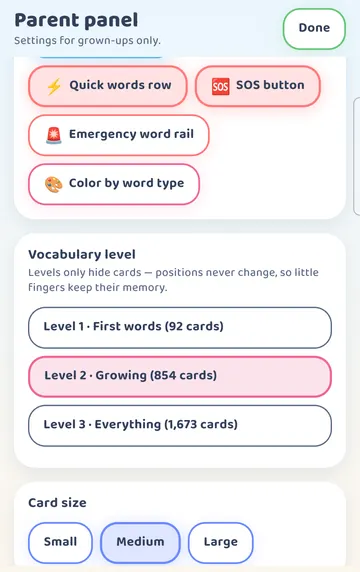
Tap SOS button so the chip fills in. In this picture, the Sentence strip and Quick words row are on too. You don't need them for SOS.
Step 2: Find SOS on the board
Tap Done. You are back on the board.
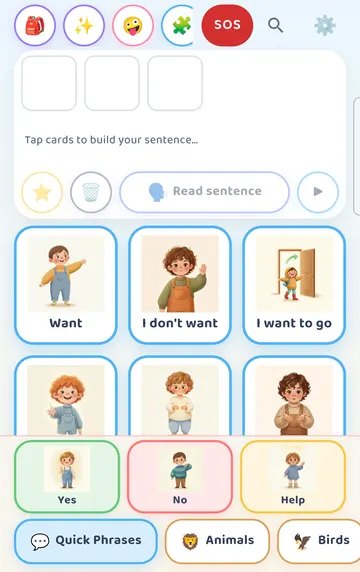
A red SOS button now sits in the top row of the board, next to the other buttons along the top.
It's worth showing your child where it is. Point to it, tap it together, and close it again. That way the button is familiar before it is ever needed.
Step 3: The Emergency sheet
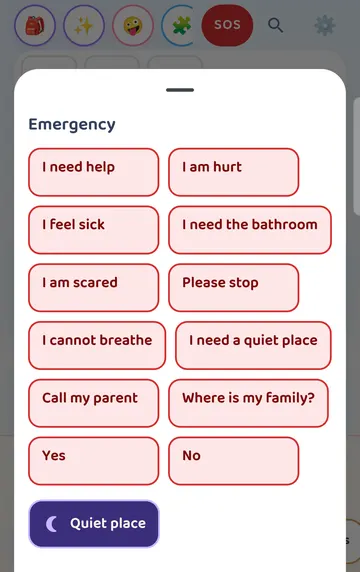
Tap SOS. A sheet called Emergency slides up with 12 phrases:
- I need help
- I am hurt
- I feel sick
- I need the bathroom
- I am scared
- Please stop
- I cannot breathe
- I need a quiet place
- Call my parent
- Where is my family?
- Yes
- No
One tap speaks a phrase right away. There is nothing to build and no extra button to press.
See it on a larger screen
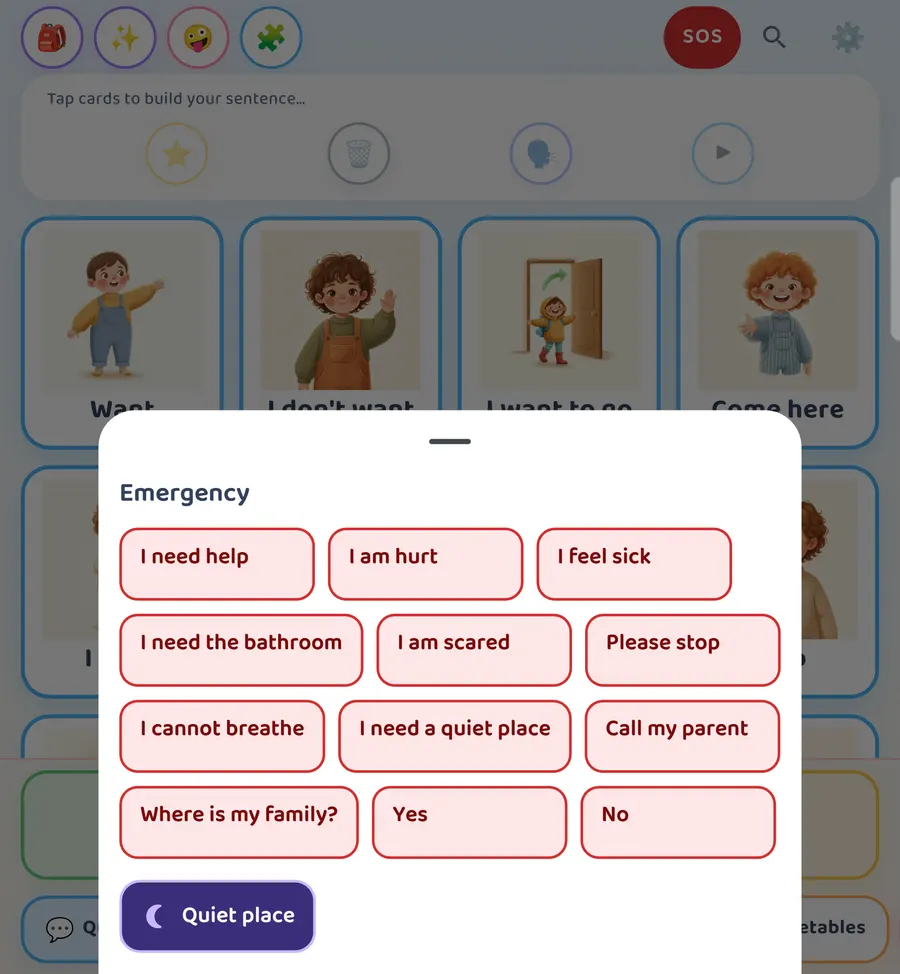
On a tablet or an unfolded phone, the phrases are laid out with more room.
Step 4: A way into the Quiet place
At the bottom of the sheet there is a Quiet place button.
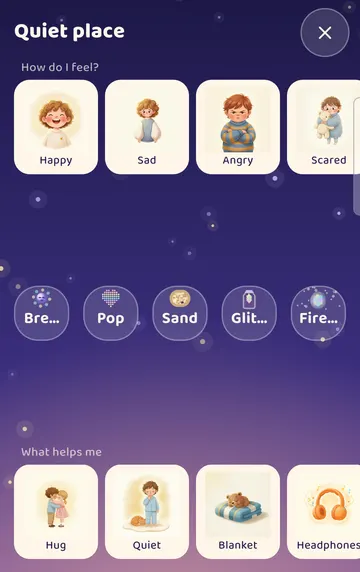
Tapping it opens the Quiet place directly. It's a quiet place to rest and breathe, with a few simple activities and a "How do I feel?" row of feelings cards.
If you would rather this button weren't on the sheet, you can turn it off. In the Parent panel, go to the Quiet place section and tap A door in SOS so it is off.
Make the phrases your own
The 12 phrases are a starting point. You know which words your child needs most.
To change them, open the Parent panel and tap the Emergency board row. There you can turn the ready-made phrases on or off and add your own.
You might swap a phrase for one that fits your child better, such as a sibling's name or the word your family uses for a favorite comfort item. Short and clear works best on a small button.
A few gentle notes
Practice when things are calm. Tap a phrase together during an ordinary moment so the sheet feels familiar.
Keep the phone or tablet where your child can reach it. The SOS button can only help if the device is close by.
Let caregivers know. A grandparent, babysitter or teacher who hears "Call my parent" from the app should know what it means and what to do.
Try it
- Press and hold the gear for 3 seconds and answer the sum.
- Under Talking board (AAC), tap SOS button so it fills in.
- Tap Done and find the red SOS button in the board's top row.
- Tap SOS and tap a phrase to hear it.
- Tap Quiet place at the bottom of the sheet to see where it leads.
- Back in the Parent panel, open Emergency board and turn off a phrase your child won't need, or add one they will.
- Show your child the SOS button during a calm moment.
This is practical guidance from the people who make Talking Cards, not clinical advice. Your child's speech-language pathologist knows your child best.