The app's own help
Talking Cards has a short help section about TalkBack. To find it:
- Press and hold the gear in the top right of the board for 3 seconds.
- Tap the right answer to the sum in "For grown-ups".
- Scroll to the bottom of the Parent panel and tap About & Help.
- Scroll to Screen reader (TalkBack).
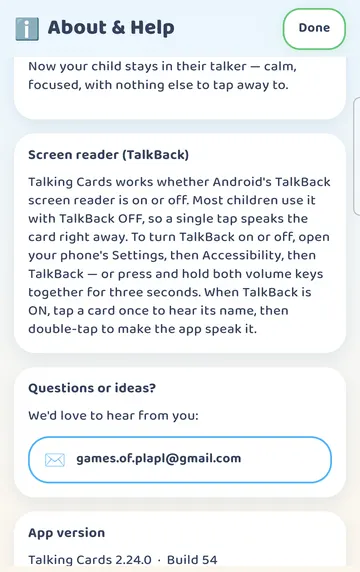
Here is the full text:
The rest of this guide unpacks that paragraph.
With TalkBack off: one tap
This is how most children use Talking Cards. Your child taps a card once, and the app speaks it straight away. The card is held up big for a moment so your child can look, listen and say it too.
If your child doesn't use a screen reader, keep TalkBack off. One tap, one word is the simplest way to use the board.
With TalkBack on: one tap, then a double tap
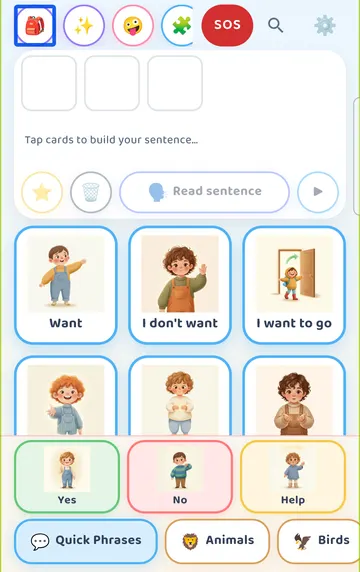
TalkBack puts a box around whatever is selected. When you open Talking Cards with TalkBack on, you may see TalkBack's blue focus box around the first button in the top row, the bag.
With TalkBack on, a card takes two steps:
- Tap a card once. TalkBack selects it and reads its name.
- Double-tap. Talking Cards speaks the card.
Each card has a single label for TalkBack, so a selected card is read once, by its name.
The screenshot shows the focus box only. The one-tap and double-tap steps happen in sound, so there's no picture of them here. The best way to learn them is to try them yourself before handing the device to your child.
Turning TalkBack on or off
There are two ways, both from the app's help text:
- Through Settings. Open your phone's Settings, then Accessibility, then TalkBack.
- With the volume keys. Press and hold both volume keys together for three seconds.
If taps suddenly stop speaking the way they used to
Sometimes a child taps a card and hears only its name, and the app speaks the card only after a second tap. That is how taps work when TalkBack is on.
If you didn't mean to turn TalkBack on, check your phone's Accessibility settings. The volume-key shortcut is one way it can be switched on. Turn TalkBack off in Settings, or hold both volume keys together for three seconds, and a single tap speaks the card again.
iPhone, iPad and Fire tablets
TalkBack is Android's screen reader. The help section above appears on Android only.
On iPhone and iPad, the screen reader is called VoiceOver. It works differently, and this guide doesn't cover its steps. On Fire tablets, the screen reader is called VoiceView, and the TalkBack help section is hidden there too.
Try it
- Open the app's help: gear (hold 3 seconds) > sum > About & Help > Screen reader (TalkBack).
- Read the help text through once.
- Go back to the board with TalkBack off and tap a card. It speaks right away.
- Turn TalkBack on in Settings > Accessibility > TalkBack.
- Open Talking Cards and look for the blue focus box around the bag.
- Tap a card once and listen for its name.
- Double-tap and listen for the app to speak the card.
- Turn TalkBack off again, in Settings or by holding both volume keys for three seconds.
This is practical guidance from the people who make Talking Cards, not clinical advice. Your child's speech-language pathologist knows your child best.